
Getting started
Welcome to Triform. Pick the path that fits how you want to build:
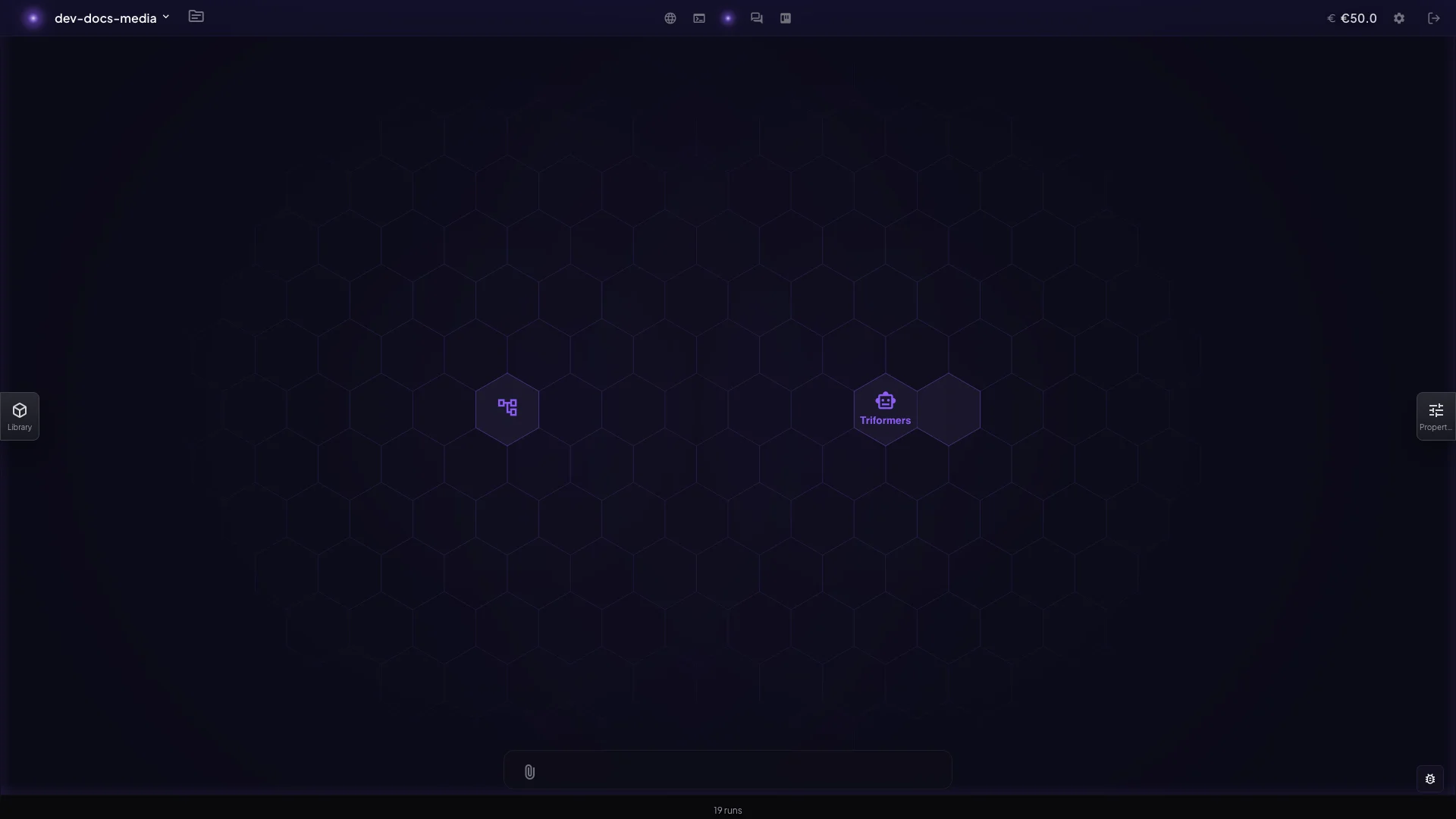
Build visually (no code)
For builders who want to assemble an application on the canvas — add elements, configure them in panels, wire them together, and ship.
- Sign up and land in a circle. A circle is your unit of tenancy: an identity, an isolated database schema, a git repository, and a wallet, all at once. Everything you build lives inside exactly one circle, and data never leaks between circles.
- Add your first element. Open the canvas and place an
element — a
pythonfunction, adocumentstore, aview, anapp. Elements sit flat inside the circle; you don’t need a folder or wrapper to group related ones, just create them side by side. - Configure it in its panel. Selecting an element opens its properties, where you fill in its spec — the code for an action, the schema for a data element, the layout for a view. Each element validates against its own schema as you go.
- Wire two elements together. Composition is how
elements stop standing alone: a
wireconnects one element’s output to another’s input, anappreferences the elements it deploys, anautomationroutes data between steps. Connect a source to a consumer and data flows. - Preview, then ship. Invoke an operation to see it run — every run is tracked with its inputs, status, output, and logs (see runs) — and publish the app when it behaves.
The element’s own docs page tells you what each one is for and when to reach for something else, so you can keep the loop tight: add, configure, wire, run, repeat.
Build with the API, CLI, or agents
For developers calling Triform over HTTP, the triform CLI, or MCP, and for agent
integrators. The platform exposes one consistent API shape for every element
type, so a single set of moves covers everything.
-
Get the CLI (optional) and credentials. Working over plain HTTP needs nothing installed. To use the
triformCLI and its bundled MCP server, one command installs both (Linux/macOS shown; Windows uses the PowerShell installer — see the CLI guide):curl -fsSL https://triform.cloud/downloads/install.sh | shTriform accepts bearer tokens for programmatic clients and agents, and cookie sessions for the browser UI (see auth). From the CLI,
triform auth logindoes an interactive browser login, ortriform auth set-api-keyuses a bearer token directly;triform auth statusshows who you’re authenticated as. The MCP server reuses the same resolved credentials. -
Discover an element and its operations. Every element lives at a flat URL,
/api/{circle}/{slug}, with operations under/api/{circle}/{slug}/ops/{operation}. You don’t need an external endpoint map: responses are self-documenting.GETan element and read_actionsfor the callable operations (each with method, URL, and input schema) and_lifecyclefor the valid-vs-blocked operations in its current state. To browse, usetriform tools(or list over MCP), orPOST /api/searchto find elements andPOST /api/search/docsfor help. -
Invoke it — HTTP, CLI, or MCP, your choice. The same operation is callable three ways:
# HTTP
curl -s -X POST https://triform.dev/api/acme/my-function/ops/invoke \
  -H "Authorization: Bearer $TOKEN" \
  -H "Content-Type: application/json" \
  -d '{"input": {"name": "Ada"}}'
# CLI — uniform across every element triform <tool> <action> --field value triform <tool> --input '{"field":"value"}'Over MCP, the same tools are exposed to MCP-capable agents (Claude Code and any MCP client). The tool catalog the CLI scripts, the MCP agent sees, and the HTTP API serves are the same surface — a workflow you script one way is callable verbatim the others. Bootstrapping a working set of elements at once? Batch create them in a single request.
-
Handle errors and lifecycle. Before submitting, check
_lifecyclefor blockers — an operation can be invalid in the element’s current state, with the reason given. Read the operation’s declared input schema from_actionsrather than hard-coding a request shape, and continue from the next response. -
Stream results. Operations don’t just return — the platform pushes live events as a run progresses (started, progressed, completed, failed). Subscribe to the event stream to watch a run in real time instead of polling, then react to terminal states as they arrive.
Go deeper in the reference clusters: the HTTP API, the CLI, and the MCP server.
First, the core ideas
New to the platform? Two minutes on the core concepts pays off:
- Tenancy: the airtight circle — where everything lives
- Elements — what you build with
- Composition — how elements connect
- Runs — how operations execute